Showing posts with label server properties. Show all posts

Monday, February 6, 2012

Analysis Server Properties A-Z: CollationName

The official documentation says...

This property is "A string property that identifies the server collation." according to the documentation.
It is a property which can have a value from the Windows collation list. For those who are familiar only with the SQL engine: Analysis Services supports only Windows collations - no SQL collations are allowed.
How and where it can be set?
In the Language/Collation page of the Analysis Server Properties window:

Analysis Server Properties - Language/Collation page
What happens if the value of this parameter changes?

This change will be applied in the <CollationName> tag of msmdsrv.ini. A change in collation can affect sorting and character comparison. Just for an example, "fruit" and "Fruit" won't be the same if you set a case-sensitive collation (check out this related post of Jamie Thomson).
If you don't specify collation from the client side, then this will be the collation used in the session, which also affects sorting.

Restart needed to apply changes:
No. Your changes are applied immediately.

Category:
N/A. It's a property which is not on the General page.

Default Value:
The value of this property is specified during installation, when Latin1_General_CI_AS is offered by default.

Analysis Server Properties A-Z: AllowedBrowsingFolders

The official documentation says...

As the official documentation says here, the AllowedBrowsingFolders property is "A string property that defines the names of the folders where logs, backups, and other objects are allowed to be created on the server, in the form of a comma-separated list."

But well, it's a pipe-separated list.

How and where it can be set?
In the General page of the Analysis Server Properties window, after the "Show Advanced (All) Properties" checkbox had been set:


This change will be written into the msmdsrv.ini file, in the <AllowedBrowsingFolders> tag.

What happens if the value of this parameter changes?

For example, when you connect to your instance with SSMS, and add a new database, you will be prompted for the storage location of the new database:

Analysis Services New Database dialog
When you click the ellipsis button, a list will appear where you can select the location of the new Analysis Services database:

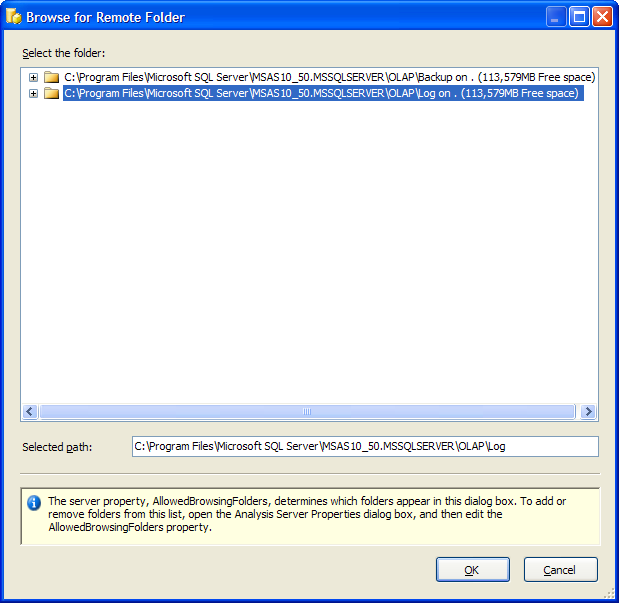
Browse for Remote Folder dialog

The AllowedBrowsingFolders property controls this list, so only items defined in the Analysis Services Properties window at this property can be seen here.

Restart needed to apply changes:
No. Your changes are applied immediately.

Category:
Advanced

Default Value:
"\data". This is a relative path to your Analyis Services installation folder.

Monday, January 23, 2012

Analysis Server Properties A-Z: BackupDir

The official documentation says...

As the official documentation says here, the BackupDir property is "A string property that identifies the name of the directory where backup files are created by default, in the event a path is not specified as part of the the Backup command."

How and where it can be set?
In the General page of the Analysis Server Properties window. After connecting to your SSAS instance with SSMS, right-click on its node, and select Properties.

What happens if the value of this parameter changes?

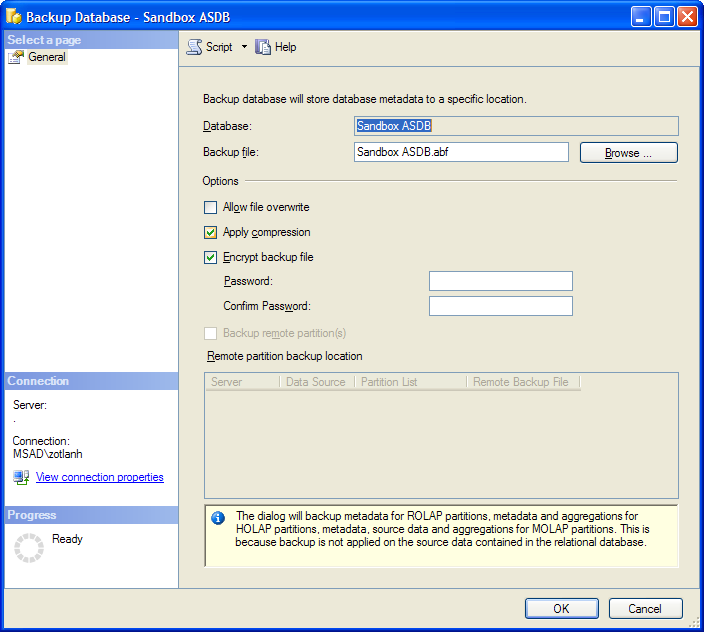
Nothing immediately - except this change will be applied in the <BackupDir> tag of msmdsrv.ini. But later when you want to backup one of your databases with SSMS, you will be prompted for the backup file name:

Backup Database dialog
 
As you can see, no directory is explicitly set. It means that the backup file will be created in the folder specified in the BackupDir property. When you click the Browse button, a list will appear where you can select the location of the backup file:


Backup SSAS database - Save File As dialog box
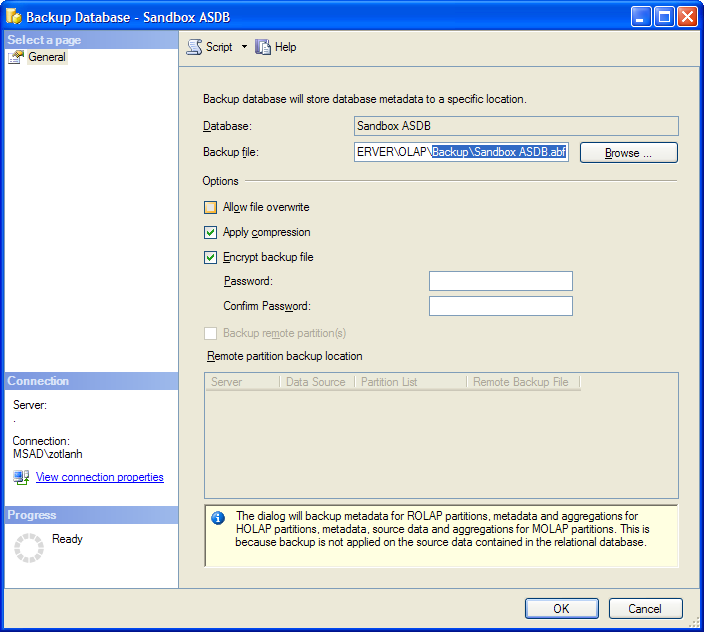
The AllowedBrowsingFolders property controls this list, so only items defined in the Analysis Services Properties window at that property can be seen here. If you select an item here, it will be filled in the Backup file editbox:

Backup Database dialog with a directory path applied
Restart needed to apply changes:
Yes. Your changes are applied only after a restart of the Analysis Services instance.

Category:
Basic

Default Value:
None. The default value is empty.